

Key Takeaways
- Most QuickBooks Online errors involve bank feeds, duplicate transactions, payroll connections, user access, or reconciliation discrepancies.
- Start with safe troubleshooting steps: check account status, review transaction details, refresh connections, and update browser settings.
- Never delete or force-reconcile unclear transactions without understanding the effect on balances, reports, taxes, and prior reconciliations.
- Monthly reconciliations, documented bookkeeping procedures, and professional cleanup support can keep small errors from becoming costly problems.
A QuickBooks Online error can turn a five-minute bookkeeping task into a confusing search through transactions, settings, and support articles. That's frustrating when you're trying to run a business, not troubleshoot software. Connected bank feeds, payroll runs, and automated syncing work behind the scenes, so small hiccups pop up more often than most owners expect.
This guide covers nine common problems, numbered sequentially from Error 1 through Error 9.
Before you touch anything, keep one rule in mind: don't edit historical or tax-related transactions without preserving a clear audit trail. Call in bookkeeping help when a fix feels risky. You'll learn what causes each error and how to resolve it safely.
Before You Fix a QuickBooks Online Error
Errors happen. Your response can turn a small glitch into a big mess, so slow down and think before you act.

Avoid these actions until you know what caused the error:
- Don't delete transactions just because they look wrong.
- Don't re-import a bank file you already imported once.
- Don't change payroll settings in the middle of a pay run.
- Don't force a reconciliation to balance if the numbers don't match.
- Don't ignore old uncleared transactions that could be skewing your data.
Each shortcut feels faster in the moment but usually creates more cleanup work later[1].
Identify the Error and Protect Your Data
Start by writing down the exact error message. Note the account, the date, and what you were doing when it appeared. This small step saves a lot of guesswork later.
Next, figure out how wide the problem is. Does it affect one user, one browser, or the whole company file? That answer points you toward the right fix[2].
Before you touch anything reconciled or tied to payroll, export the report. A saved copy gives you something to compare against after you make changes. It also protects you if the fix doesn't go as planned.
Use a Safe Troubleshooting Sequence
Many QuickBooks Online issues may be caused by browser, session, or service problems. Check the QuickBooks Online status page, sign out and back in, or try a private browser window. Use QuickBooks Online-specific support instructions rather than Desktop Tool Hub guidance.
Clearing your cache or switching to a supported browser also fixes a surprising number of issues. If a bank feed looks off, refresh the connection before reconnecting the account. Repeatedly re-importing transactions rarely helps and often creates duplicates.
Sometimes the problem runs deeper than a glitch. If you spot old uncleared transactions piling up, that's a bookkeeping issue, not a tech one. It needs a closer look at the ledger, not just a browser refresh.
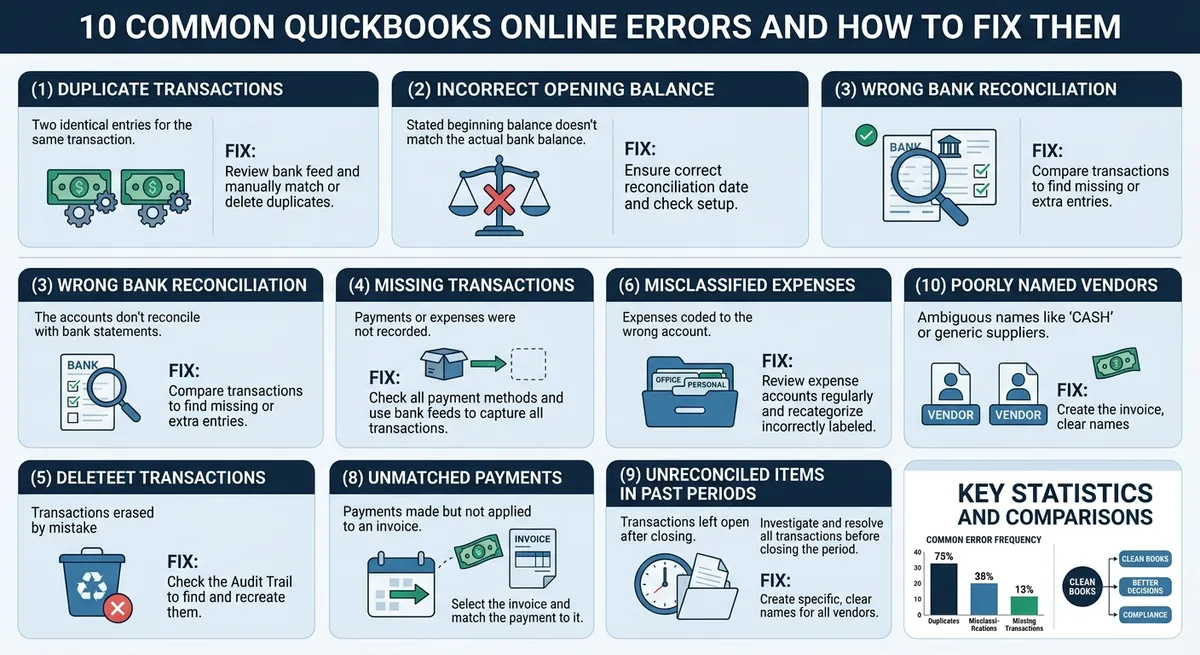
Key data and insights: 10 Common QuickBooks Online Errors and How to Fix Them
Bank Feed and Connection Errors
Bank feed problems are reportedly among the most common issues in QuickBooks Online, according to bookkeeping practitioners. Most come from a broken link between your bank and your books, not from bad accounting work[2]. Once you know what causes each error, fixing it gets easier.
Error 1: Bank Feed Will Not Connect or Update
A feed usually breaks because your bank login changed. Expired credentials, new multifactor login steps, and bank site outages are common culprits[3]. Unsupported account types and short network drops can also stop updates.
To fix it, go to Banking, select the affected account, and choose Edit or sign-in options. Update your login details and complete any identity checks your bank requests. Then check the last downloaded date to confirm the feed is current.
Don't disconnect the account if a simple refresh will work. Disconnecting and reconnecting can create duplicate entries or leave gaps in your transaction history. If the feed still won't sync, professional QuickBooks cleanup services can rebuild the connection without losing past data.
Error 2: Transactions Are Missing from the Bank Feed
First, check your bank's posted date against the date range QuickBooks is pulling from. Make sure you've selected the right account, too. Some missing transactions are already in the For Review, Categorized, or Excluded tabs.
Pending transactions won't download until your bank posts them. If you need the data sooner, upload a properly formatted file instead. Match imported transactions to existing entries rather than adding new ones, since adding creates duplicates.
Error 3: Duplicate Bank Transactions Appear
Duplicates usually happen when you import the same file twice or reconnect an account that was already linked. Clicking
Transaction, Categorization, and Sync Errors
Some QuickBooks problems don't show up as scary error codes. They quietly affect your books or lock you out of your account. Here's how to spot and fix the three most common ones.
Error 4: Transactions Are Categorized to the Wrong Account
Wrong categories don't just look messy. They throw off your profit and loss statement and balance sheet. That can lead to bad tax filings and business decisions based on inaccurate numbers.[1]
Start by opening the transaction and checking the basics. Look at the vendor name, memo, class, location, and payment method. Then compare it with similar transactions from the past.
Once you find the error, fix the original transaction directly. Don't create an offsetting entry to cancel it out unless your bookkeeper or accountant tells you to. Offsetting entries can hide the real problem and make future reviews harder.
Regular monthly account reconciliation catches these mistakes early, before they pile up into a bigger cleanup job.
Error 5: QuickBooks Online Does Not Sync or Respond Normally
Sync problems usually come from something simple: old browser cache, an outdated browser, blocked pop-ups, or a shaky internet connection.[2] Sometimes it's just a temporary service outage on Intuit's end.
Try a private browsing window first. Clear your cache, update your browser, and turn off extensions that might conflict with QuickBooks. Check the QuickBooks status page too, since it shows known outages in real time.
> ## Payroll Errors and Failed Payroll Connections > > > Payroll errors need faster action than most QuickBooks problems. A bookkeeping mistake can wait a day. A missed payroll deadline can't. > > > !Payroll Errors and Failed Payroll Connections — 10 Common QuickBooks Online Errors and How to Fix Them > > > > Timing matters here. So does employee pay, tax deposits, and filings. Fixing payroll wrong can create duplicate wages or double tax payments[6]. > > > | Error or Symptom | Possible Cause | Immediate Check | Escalation Point | > | --- | --- | --- | --- | > | Server connection error | Service outage, expired session, or setup issue | Confirm payroll service status and sign in again | Contact Intuit Payroll support if the error repeats | > | PS038 (originally a QuickBooks Desktop Payroll code) | Paycheck stuck mid-process | Check paycheck status before resending | Call Intuit before deleting or voiding paychecks | > | Setup error | Missing company, employee, or tax agency data | Compare setup fields against tax forms | Payroll specialist review before next pay run | > | Direct deposit issue | Bank verification failure or missed cutoff | Confirm bank status and transmission time | Support review if funds already left the account | > | Tax payment concern | Incorrect tax setup or late deposit | Check tax agency details and due dates | Tax professional or Intuit specialist | > > > > > ### Error 6: Payroll Service or Server Connection Error > > > This error often pops up when you try to run payroll. It can come from a service outage, an old browser session, or a lapsed subscription[5]. Bad account setup can trigger it too. > Start by checking payroll service status. Then review your company and employee setup for errors. Sign out and back in before trying again[8]. > Don't rerun payroll just because a confirmation screen didn't load. Don't change tax settings either. That guesswork often causes bigger problems than the original error. > > > > ### Error 7: Payroll Error PS038 or Paychecks Stuck in Processing > > > PS038 is officially a QuickBooks Desktop Payroll error code, but QuickBooks Online Payroll users can run into the same underlying problem: a paycheck didn't fully send or got stuck processing[6]. If QBO surfaces this code or a similar symptom, treat it as a description of the problem rather than an exact QBO-native error label, and follow QuickBooks Online-specific support steps rather than Desktop Tool Hub instructions. Review your payroll details first. Find out which paychecks got hit. > Check whether direct deposit or tax payments already went out. Then follow Intuit's supported steps to clear the error[7]. This connects to the same careful review habits covered in our month-end bookkeeping checklist. > Call Intuit Payroll support before deleting or recreating any paycheck. Doing it yourself risks duplicate wages or duplicate tax filings. > > > > ### Payroll Setup, Tax, and Direct Deposit Mistakes > > > Many payroll errors trace back to setup. Incomplete company info, wrong employee data, or missing tax agency details all cause trouble[9]. Bank verification problems and outdated forms add to the list. > Compare setup fields against official tax documentsConfirm payroll transmission deadlines before each pay runVerify bank details are current and confirmed > If a deadline is close and something looks off, get a payroll professional involved. An Intuit Payroll specialist can review the issue before your next pay date arrives. > > > > ## Reconciliation Discrepancies and Balance Problems > > > Reconciliation errors follow a pattern. Figuring out which pattern you're dealing with saves hours of guesswork. Ask yourself these questions in order: > > > !Reconciliation Discrepancies and Balance Problems — 10 Common QuickBooks Online Errors and How to Fix Them > > > Does the discrepancy show up right after you finish reconciling?Is the beginning balance wrong before you even start?Is there an old uncleared item sitting on the report month after month?Was a prior reconciliation edited or undone?Each answer points to a different fix, which we'll cover below. > > > > ### Error 8: Reconciliation Discrepancy After Completing a Reconciliation > > > A discrepancy after reconciling almost always traces back to one thing: a change made to a transaction that was already cleared. Someone edited it, deleted it, duplicated it, or unchecked its reconciled status[13]. A wrong statement ending balance or a bad opening balance can also cause it.Start with the Reconciliation Discrepancy Report. It can help identify transactions or reconciliation data that may have changed since a prior reconciliation; review the report and audit log together. From there, review the account register, double-check the statement period, and scan the audit log for edits you didn't expect.Don't force the account to balance with a manual adjustment. That just hides the real problem instead of fixing it[11]. If your books have months of small unexplained differences piling up, a catch-up bookkeeping cleanup can untangle them properly. > > > > ### Error 9: Opening Balance or Beginning Balance Does Not Match > > > A wrong opening balance throws off every reconciliation after it. This usually comes from the prior statement, how the account was set up, a data conversion, or an old adjustment nobody documented[15].Compare the QuickBooks beginning balance to your last completed reconciliation and to your actual bank or credit card statement. Fix the problem at the earliest period it appears, not in the current month. Keep notes on what you changed and why, so future reviews don't repeat the same detective work. > > > > ### How to Repair Old, Unclear, or Previously Reconciled Transactions > > > Stale checks, old deposits, and forgotten transfers often sit on the reconciliation report for months. First, figure out if the item is truly still outstanding, already cleared outside QuickBooks, duplicated, or just dated wrong[12].If the fix touches multiple periods or could change tax filings, loan reports, or financial statements, bring in a professional[1]. Editing prior-period transactions without solid documentation creates new problems even as it solves old ones. > > > > ## Prevention, Cleanup, and When to Get Help > > > Most QuickBooks errors are easier to prevent than to fix. A little routine care each month goes a long way. Let's look at how to stay ahead of problems and know when it's time to call in help. > > > > ### Prevent Recurring QuickBooks Online Errors > > > Reconcile your accounts every month, not just at tax time. Review your bank feed often so mismatched transactions don't pile up[11]. Set clear transaction rules and limit who can edit past entries. > Build a simple month-end close routine. Check for uncategorized transactions, duplicate entries, and lingering transfers. Look at outstanding checks, accounts receivable, and accounts payable before you call the books done[15]. > Save every reconciliation report. Keep a short log of any big corrections you make and why. This habit pays off if you ever need to trace an error back to its source, and it pairs well with a catch-up bookkeeping checklist if you're rebuilding your process from scratch. > > > > ### Know When QuickBooks Cleanup Is Necessary > > > Some issues are too tangled for a quick fix. Watch for these warning signs: > > Reconciliations that fail month after month > Negative or clearly wrong account balances > Years of uncategorized transactions > Duplicate bank feed entries > Retained earnings that don't make sense > Payroll liabilities that don't match reality > > Cleanup often means fixing old opening balances and clearing out uncleared transactions from years back[12]. It also means rebuilding account logic and writing down every adjustment you make. This is exactly where Tidy Ledgers Bookkeeping helps, with QuickBooks setup, cleanup, catch-up work, and ongoing monthly support once your books are back on track. > > > > ### Decide Between DIY Troubleshooting and Professional Support > > > Some fixes are safe for any business owner. Others need a trained eye. Here's a simple breakdown: > > > | Safe to Try Yourself | Call a Bookkeeper or Payroll Specialist | > | --- | --- | > | Refreshing your browser or clearing cache[3] | Payroll connection or tax filing errors[5] | > | Updating login credentials | Reconciling several years of history | > | Reviewing the bank feed Conclusion: Fix Errors Without Losing Control of Your Books QuickBooks errors are common. Most of them are fixable if you slow down and work through them step by step. A Repeatable Plan for Cleaner QuickBooks Online Records We covered nine numbered errors in this guide, from bank feed connections and duplicate transactions to payroll issues and reconciliation discrepancies. The fix is almost always the same process. First, identify what's actually wrong. Then protect your audit trail before you touch anything[1]. Next, check the source document. Compare it against your bank statement or payroll report. Correct the entry carefully, then verify your reports afterward to confirm the fix actually worked[11]. This sequence works for almost any error you'll run into. Here's why it matters so much: Catching small errors monthly often takes only minutes Untangling a year of mistakes can reportedly take days or weeks, depending on the volume of transactions Old errors often hide new ones, making problems compound over time A short monthly review beats a massive year-end cleanup every time. If you want a system for this, our QuickBooks setup and cleanup service builds that routine into your books from day one. Get Help With QuickBooks Online Cleanup Some errors are simple. Others aren't, especially when bank feeds, payroll, and reconciliations tangle together. If you're stuck, don't keep guessing. Reach out to Tidy Ledgers Bookkeeping for a straightforward assessment of what's going on. Start by gathering your recent bank statements and notes on the errors you've seen. From there, we'll help you figure out whether you need a quick targeted fix, a full catch-up cleanup, or ongoing monthly bookkeeping support. You can learn more about how that works through our QuickBooks cleanup and setup services. Still seeing QuickBooks errors? Let Tidy Ledgers help restore accurate, organized books. Get started with our QuickBooks setup and cleanup service. Frequently Asked Questions Why is my QuickBooks Online bank feed not updating? A few things usually cause this. Your bank login credentials may have expired, your bank may have changed its multifactor authentication setup, or there could be a temporary outage on the bank's end. Some accounts also just aren't supported for direct feeds, and connection interruptions happen from time to time. Before you reconnect anything, check your bank connection status, look at the dates on your posted transactions, and check QuickBooks' own status page to see if there's a known issue. Bank feed problems are reportedly one of the most common complaints bookkeepers hear about QuickBooks Online, so you're not alone if this keeps happening. How do I fix a reconciliation discrepancy in QuickBooks Online? Start by confirming your statement ending date and ending balance match exactly what your bank statement shows. Then run the Reconciliation Discrepancy Report to see which transactions changed after they were already reconciled. Check the audit log for edits or deletions, and trace the problem back to the earliest period where things stopped matching. Don't just force an adjustment entry to make the numbers line up. Without solid documentation, that can hide a bigger problem and cause more trouble down the road. When should I hire a bookkeeper to fix QuickBooks Online errors? Call in a professional once payroll or tax filings are involved, or if you're dealing with multiple reconciled periods that need fixing at once. Wrong opening balances, duplicate transactions, and piles of uncategorized activity are also signs the cleanup has gone past a quick fix. These issues tend to compound fast, and manual data entry can also contribute to bookkeeping errors, particularly when transactions are entered or reviewed inconsistently. Tidy Ledgers can take a look at your books, figure out what cleanup you actually need, and help set up ongoing bookkeeping so these errors stop piling up. Conclusion Most QuickBooks Online errors aren't disasters. Bank feed glitches, duplicate transactions, payroll hiccups, and reconciliation mismatches all have clear causes once you know where to look. The key is finding the source before you start deleting or changing anything. Bank feeds, payroll, and reconciliations each need their own approach. What works for a duplicate transaction won't fix a payroll sync issue. Rushing through fixes without understanding the cause is how small errors turn into messy cleanups that take hours to untangle. Monthly reconciliations and steady bookkeeping habits catch problems early, before they affect your reports or taxes. If your books are already showing signs of trouble, don't wait for it to get worse. If QuickBooks errors are affecting your reports, payroll, or month-end close, contact Tidy Ledgers Bookkeeping. We can help with QuickBooks cleanup, catch-up bookkeeping, or ongoing monthly support so your numbers stay accurate. | |
Related Articles
- QuickBooks Setup & CleanupSetup, cleanup, and training for QuickBooks Online users, from an advanced certified ProAdvisor
- GuideHow to Clean Up Old Uncleared Transactions in QuickBooks OnlineAn uncleared transaction is a reconciliation status, not proof that an entry is wrong. This guide helps owners investigate stale QuickBooks Online items, choose a supported next step, and protect reconciled or filed periods.Read the guide
- GuideMonth-End Bookkeeping Checklist for Small BusinessesA practical monthly routine for reconciling accounts, reviewing financial reports, documenting open items, and closing cleaner books.Read the guide
- GuideBehind on your books? A catch-up bookkeeping checklistA calm, step-by-step checklist for business owners who are behind on their books, covering statements, reconciliation, categories, sales tax, payroll, and getting tax-ready.Read the guide
- Clean books, closed on time, every month
- Monthly BookkeepingCategorized transactions, reconciled accounts, and clean monthly financials, closed on time, every month
Common questions
Why is my QuickBooks Online bank feed not updating?
A few things usually cause this. Your bank login credentials may have expired, your bank may have changed its multifactor authentication setup, or there could be a temporary outage on the bank's end. Some accounts also just aren't supported for direct feeds, and connection interruptions happen from time to time. Before you reconnect anything, check your bank connection status, look at the dates on your posted transactions, and check QuickBooks' own status page to see if there's a known issue. Bank feed problems are one of the most common complaints bookkeepers hear about QuickBooks Online, so you're not alone if this keeps happening.
How do I fix a reconciliation discrepancy in QuickBooks Online?
Start by confirming your statement ending date and ending balance match exactly what your bank statement shows. Then run the Reconciliation Discrepancy Report to see which transactions changed after they were already reconciled. Check the audit log for edits or deletions, and trace the problem back to the earliest period where things stopped matching. Don't just force an adjustment entry to make the numbers line up. Without solid documentation, that can hide a bigger problem and cause more trouble down the road.
When should I hire a bookkeeper to fix QuickBooks Online errors?
Call in a professional once payroll or tax filings are involved, or if you're dealing with multiple reconciled periods that need fixing at once. Wrong opening balances, duplicate transactions, and piles of uncategorized activity are also signs the cleanup has gone past a quick fix. These issues tend to compound fast, and manual data entry mistakes cause a large share of small business bookkeeping errors in the first place. Tidy Ledgers can take a look at your books, figure out what cleanup you actually need, and help set up ongoing bookkeeping so these errors stop piling up.

Want this handled for you?
Get a free, no-obligation quote and a quick health check of where your books stand. We reply within one business day. No pitch, no pressure.